A Complete Guide to GPU Bottlenecking
I still remember the first time when I built my own gaming PC. I saved up, picked a powerful graphics card, and was super excited to try it out. But when I started playing, something felt off, like my games were not as smooth as I expected.
At first, I thought something was broken. But after some analysis, I learned it was something called GPU bottlenecking. It turns out that even with a strong GPU, so my processor was not fast enough to keep up, and slowing everything down.
If you have faced the same kind of frustration, then you are not alone. Many people do not even realize this is a thing. That is why I decided to write this complete guide to GPU bottlenecking. Let’s get started and finally give your GPU the breathing room it needs to perform like a beast.
What is a GPU Bottleneck?
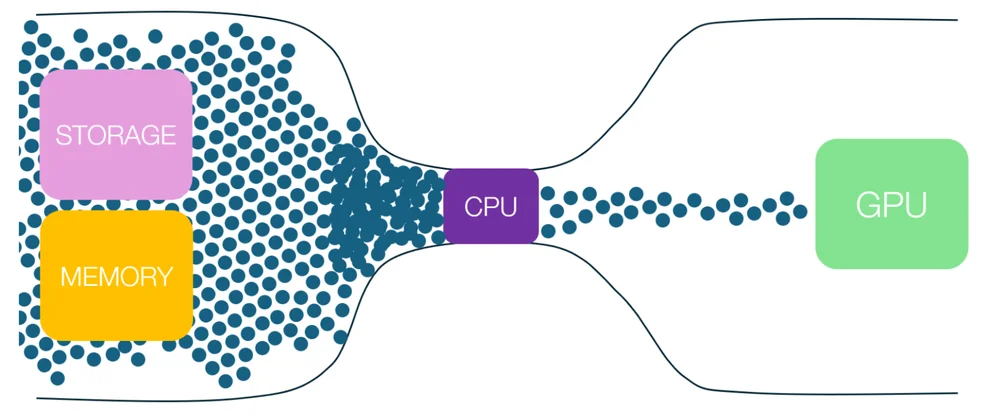
A GPU bottleneck happens when your graphics card is ready to handle more work, but your processor can not keep up, so it slows everything down. The GPU ends up waiting for the CPU to finish its tasks before it can move on, which means the full power of your graphics card is not being used.
This mostly causes fps drop, game stuttering, lower monitor refresh rate, or slower performance, even if your GPU is very powerful. Bottlenecks can also happen in other ways, but when the GPU is the one being held back, then it is called a GPU bottleneck.
Symptoms of GPU Bottlenecking
When your PC has a GPU bottleneck, then you might notice a few clear signs:
| Symptom | What It Means |
| Low frame rates | Games feel slow or choppy, even with a good GPU |
| Screen stuttering | Sudden freezes or skipped frames while gaming |
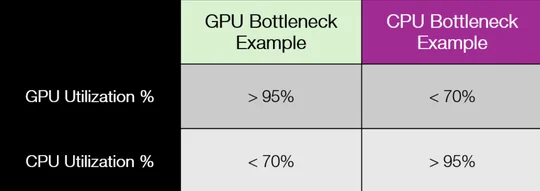
| Low GPU usage | GPU runs below 80% while CPU is at 100% |
| Quiet GPU fans / Cool GPU | GPU is not working hard, so fans stay quiet and temperature stays low |
| Slow graphic rendering | Delays when loading high-quality images or graphics in games |
| High CPU usage | CPU is overloaded, limiting how much work the GPU can do |
| Uneven performance | Game runs smooth sometimes, but lags or stutters randomly |
Causes of GPU Bottlenecking
GPU bottlenecking mostly happens when your computer parts do not match well, especially your GPU and CPU.
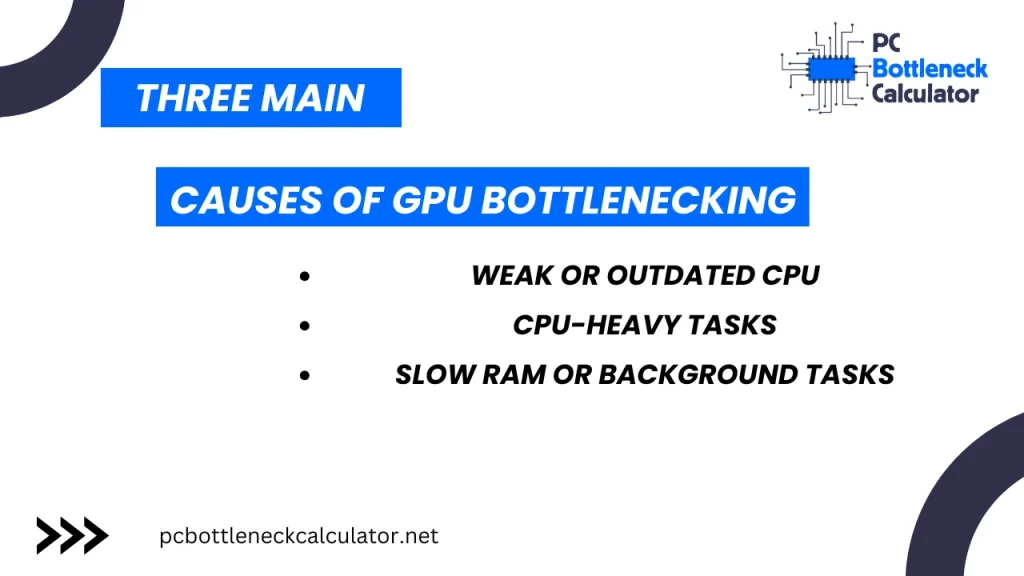
One of the main causes is having a very powerful GPU with a weak or old CPU. The CPU can not keep up with the fast work, so it slows everything down.
Another reason is running games or software that depend heavily on the CPU, like open-world games or programs that require a lot of calculations. If your RAM is too slow or you are using a low-quality motherboard, then that can also add to the problem.
Even background tasks, like too many apps running at once, can make the CPU busier than it should be, which causes a bottleneck for the GPU.
How GPU Bottlenecking Affect Performance?
So, it is not always about one part being bad, infact, it is more about how well all your parts work together.
GPU bottlenecking can seriously affect your computer’s performance, especially while gaming or using heavy graphics apps.
When the CPU can not keep up with the GPU, then your system can not use the full power of your graphics card. This leads to low frame rates, which means your game will not look smooth, so it might feel laggy or slow. You may also see screen stutters or sudden freezes during fast scenes in games.
Another big issue is wasted GPU power. Even if you bought a top-end graphics card, but it will not perform at its best if the CPU is holding it back. This can make your investment feel useless.
On top of that, the overall system can become unbalanced, which may lead to longer loading times, poor graphics quality, and a frustrating user experience.
So, GPU bottlenecking does not just slow things down, as it also stops your PC from reaching to its full potential.
How to Stop GPU Bottlenecking?
Stopping GPU bottlenecking is all about making sure your computer parts work well together. I will share some easy and effective ways to fix or reduce it:
- Upgrade Your CPU
If your CPU is too weak for your GPU, then it is time for an upgrade. A faster processor helps your system to run smoother and lets your GPU to perform better.
- Lower In-Game Settings
You know that high settings like shadows, draw distance, or crowd details can stress the CPU. So, you should lower these settings to reduce the load on your processor, which helps the GPU to work more freely.
- Close Background Apps
You know that too many apps running at the same time can make your CPU busy. So, you have to close all unnecessary programs before gaming or using heavy software.
- Enable Game Mode (on Windows)
You can on game mode on your Windows. Because game mode helps your system to focus more on your game by giving it priority over background tasks.
- Adjust Resolution and Graphics
You should remember that increasing screen resolution shifts more work to the GPU instead of the CPU. So, try to play at 1440p or 4K if your GPU can handle it to balance the load better.
- Overclock Your CPU
If you are experienced and careful, then overclocking your CPU can give it a performance boost. Just make sure your cooling system is strong enough.
- Use Faster RAM
I experienced that slow RAM can limit how fast my CPU and GPU work together. So, you should use faster or dual-channel RAM to improve your overall performance.
Personal Suggestions
From my own experience, you should make sure that your CPU and GPU are balanced in power. Check how much your CPU and GPU are working while you play games. If your budget is small, then lower game settings and close other apps to help performance. Also, you should keep your RAM fast and update your drivers regularly for better results.